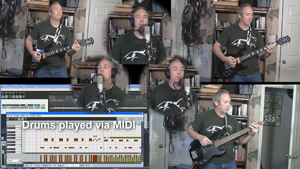
 I just recorded a cover of the song, That Thing You Do, (written by Adam Schlesinger). And I recorded it from scratch on my computer-based home recording studio right here in a spare bedroom. The band consisted of me, me, me, me, me and me:-P. The reason I did it, besides just loving the song and always wanting to, was to demonstrate what kind of thing can be done in a very modest home recording studio.
Before I talk about how I did it and what equipment I used, take a listen to how it came out!
I intend to follow up with a more complete step-by-step how-to, along with a video tutorial later this week. But here are the basics.
Sound Sources
- Voices – All me (a twisted version of narcissism?). I double-tracked the lead vocal to get that Beatlesque sound. I also sang the two harmony parts and double-tracked each of them. So there are 6 voice tracks in all.
- Guitars – Carvin DC200, 1985 model. I used this same guitar for both guitar parts. If I had vintage Rickenbackers I would have used those, but you work with what you’ve got.
- Bass – A Samick LB-11 4-string bass guitar I bought used in 1995.
- Drums – All sampled drum sounds (meaning “I don’t have a drum kit”) from an acoustic kit in the virtual instrument software package called StormDrum, by EastWest.
How Was It Recorded?
I used Reaper software to record it all. I started with the drum track. I created a MIDI track and loaded StormDrum onto it as a virtual instrument. Then I listened very carefully to the original recording of the song from the movie soundtrack. That allowed me to build the drum part hit-by-hit using the MIDI editor in Reaper.
Next, I recorded the bass track by plugging my Samick into a Line 6 POD Studio GX, which is a little box you can plug electric guitars and basses into. The POD then attaches to your computer via USB, and you use the Line 6 software to choose amps and effects to get the right sound.
Then I recorded the electric guitar parts the same way as the bass. I recorded 2 parts/tracks, one panned to the left and played as the “rhythm guitar” part. The other guitar was panned to the right and played with the little riff happening during the verses.
And Finally…
Last but not least, I recorded the lead vocal. As I mentioned, I sang it once on one track, and then recorded it again (listening to the 1st in the headphones) on a second track to get that double-tracked sound. I did the same thing with the low harmony part and panned it to the left, and the high harmony part, panned to the right. All vocals were recorded with the Rode NT2-A microphone hooked up to the computer via a USB audio interface – the Focusrite Scarlett 2i2 interface box.
You can get started with a bundle I created for B&H Audio called The Home Recording Musician’s Starter Kit. CLICK HERE for more details on that.
Then I mixed and panned everything to make sure the sounds could all be heard and rendered (mixed down) the result into one audio file, which is what you heard above.
Check back here in a few days and you should find a bit more detail and a video.
Now go forth and record your own pop or rock songs!
Cheers,
Ken

 Keep up with all the latest arrivals of the newest audio recording gear at B&H. Click on the picture on the left to be taken to a page at
  When using
  Whether you are recording your own music or working with a music file that already exists (usually a royalty free music clip for background music), there are many times when it is useful to cut, copy, and maybe paste sections of a song. Here are just a few of the more common reasons for needing to do that, just off the top of my head:
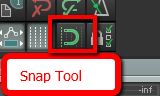 When working with music files, it is important that any edits you make do not mess with the timing. Otherwise it will be jarring to the listener. If you want to slice up a song, say, to make it fit a video, you want it to sound seamless in terms of the beat of the song. One excellent tool for doing this is the snap tool. This is a pretty common tool for editing both audio and video. In the picture on the left is where to find the tool in Reaper.
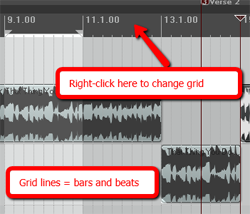 The idea of snapping is simple enough. It is a way to ensure the edges of an item can only be be moved and placed so that they align with a grid. In the case of audio, that grid is frequently bars and beats, though you can change the grid to be other things, like minutes and seconds, etc. For our purposes in this article, we want to make sure we use bars and beats. In Reaper (see picture on the left), simply right-mouse click in the band across the top of the screen to change the grid settings.
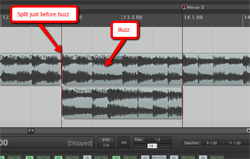 ake sure you line it up just right. Again, the snap tool needs to be ON at this point.
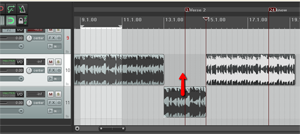
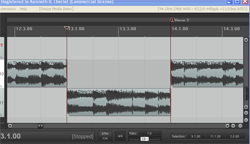 5. Now drag the left edge of the section with the guitar buzz in it to the right, creating a blank space where you will insert the part you are pasting. Things should now look like the picture to the left.