 What? You say you don’t have a PC recording studio? Let me ask you this. Do you have a computer? Was it made in the last 10 years? Does it have a sound card? If you answered “yes” to all 3 questions, you have a PC recording studio. Maybe you just didn’t know it.
So now that you DO know, you can create awesome audio for, well, for whatever. Record your songs and release an album. Send out a podcast. Narrate an audio book. Do voiceover recording for any videos you might be making, or to start a voiceover business of your own. There are so many possibilities.
Now before anyone raises their hand to protest that you can’t record really good audio using just a home computer unless you also spend a gazillion dollars on an audio interface, microphones, and special software, let me just say something first. You CAN record really good audio using just a home computer without having to spend a gazillion dollars on an audio interface, microphones, and special software. In fact, getting back to the title of this article, there are two important things about home recording you should know. First, good audio is more about knowledge than money, knowledge anyone can learn quite easily given the right lessons. Second, most people can create excellent sounding audio without spending more than about 30 dollars (for a USB mic if you don’t already have one).
1. The Basics of Home Recording are Easy to Learn
Most home recording needs will center around voiceover recording for any of a number of reasons, such as podcasts, audio for video, audio books, etc. You will probably have noticed that a lot of amateur narrated audio such as you find in videos on YouTube is really quite bad. It’s thin, echo-y, noisy, hard-to-understand, or any combination of the above. But that isn’t because the people recording this audio just have cheap gear. They could make much better audio with just a little knowledge, mainly about how to avoid and/or reduce noise, where to put the mic, etc.
2. You Can Create Good Audio With Your Current Computer and Free Recording Software
There are some good audio recording programs available free of charge on the web. Probably the best known is called Audacity. When I say “free,” I mean open source, not just a trial version. Audacity is amazingly powerful for the price ($0.00). I recommend you download it before someone figures out how good a deal it really is. Audacity is both a multi-track recording and sound editing software. It comes with lots of built-in effects like EQ, compression, reverb, and great editing capability. For many folks, especially the ones just recording vocal narration, this is the only home recording software they’ll ever need.
So now you know where to get the hardware, but you are wondering where you can gain the knowledge I said was so easy to understand. There are many tutorials on the web, but Home Brew Audio is dedicated to teaching home recording skills so that anyone can understand them, using enjoyable and humorous video tutorial videos. Why not give us a visit at www.homebrewaudio.com if you have a few moments? I bet you’ll be glad you did.

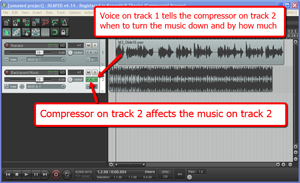 I’ll explain how to do it in
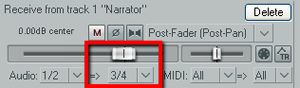
 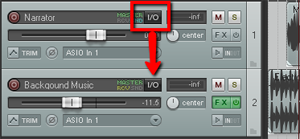 Next find the I/O (stands for “in/out”) button on the vocal track. See picture on the left. You’re going to click and drag that down to the I/O button on track 2. An I/O window will open with lots of scary-looking stuff on it. Leave everything the way it is except at the bottom where it says “1/2 => 1/2”. Just click the drop-down arrow next to the second “1/2” and change it to “3/4”. See the picture on the right.
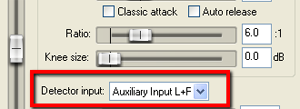
 You have just set it up so that track 1 will send a signal to track 2. The next thing you need to do is click on the FX button in track 2 to open your compressor control. Now it’s time to tell the compressor NOT to listen to the music track for cues as to when to engage, but instead, listen to the voice on track 1. So in the compressor control window (see picture below and to the left). Find where it says “Detector Input” and use the drop-down arrow to change this from the default “Main Input L+R” to “Auxiliary Input L+R“. Now the compressor will change the volume settings of the music based on the fluctuations of the voice track. Pretty neat huh?
 Now all you need to do adjust the compressor settings. You can experiment here by listening as you adjust. Start out with a Ratio setting between 4:1 and 6:1 and put the Threshold slider down to about -20 dB. One thing to be sure of before you do any of this is that the overall volume on the music track is already set to where you could hear the voice over it fairly well even without the ducking compressor. If the average volume of the music is so loud that the voice can’t even be heard to start with, ducking won’t help you much.
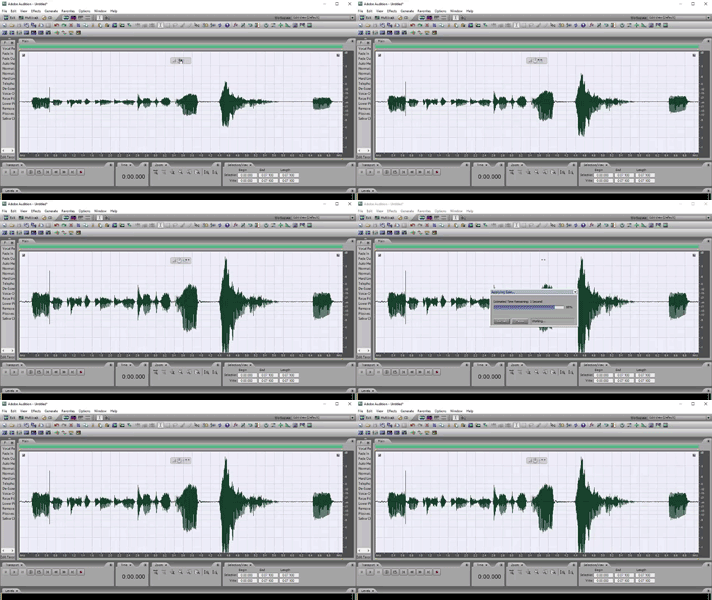 Normalization is another example of an audio recording concept whose term is both misleading, needlessly confusing.