 Here is how to fix a p-pop in a recording using sound editing software. If you do any voice recording at all, you’ve probably noticed this. No matter how hard you try, your “P” sounds (called “plosives”) will sometimes sound like small explosions in the audio.
These plosives sort of distort the audio recording for a second, sounding a bit like a low-frequency “splat.” Not pretty.
Here is how to fix a p-pop in a recording using sound editing software. If you do any voice recording at all, you’ve probably noticed this. No matter how hard you try, your “P” sounds (called “plosives”) will sometimes sound like small explosions in the audio.
These plosives sort of distort the audio recording for a second, sounding a bit like a low-frequency “splat.” Not pretty.
What causes it?
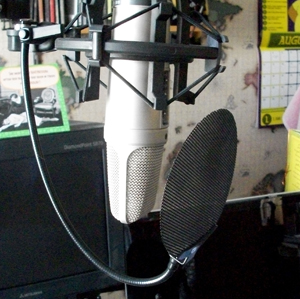
It’s what happens when a burst of wind hits a microphone. It’s especially pronounced when using a large diaphragm condenser mic like the one in the pic on the left – a Rode NT2-A. There are things you can do to minimize or prevent (shya!) them (like a pop filter), which is the best medicine. But when they do get recorded, you’ll want to know how to fix it after-the-fact. For this we use editing software. One of the wonderful things about audio editing in the computer age is that you get to use your eyes as well as your ears. I have edited so many p-pops (caused by what linguists call “plosives”) that I can recognize what they LOOK like on a computer screen even before I hear them. For my voice, the come out looking like a capital letter “N” in the waveform.How to fix it once it is recorded?
Since the plosive problem is basically caused by a rush of air from your lips hitting a microphone capsule fast and hard, what you have is a problem of volume. The plosive was too loud compared to everything around it. Not only that, but most of the too-loud bits are in the low end…the bass frequencies. So the fix would be to turn down the volume of your voice when it is hitting the “P.” In an audio editor, like Audacity (which is open source) you zoom in on the plosive and select everything right up until the voice actually becomes audible. In other words, if the word was “pot,” try not to get any of the -“ah” sound in your selection. You only want the “P” sound. Then you just use a volume reduction tool to turn down JUST the “P.” You may have to experiment (“undo” is the magic-bullet of computer audio editing!) with how much you turn it down, but that may be all you need to do.What if changing the volume doesn’t work?
Time needed: 5 minutes.
How to Fix a P-Pop in Your Audio
- Find the p-pop
Find where the p-pop happens in your recording by listening in headphones
- Highlight JUST the “p” Sound in Your Editing Software
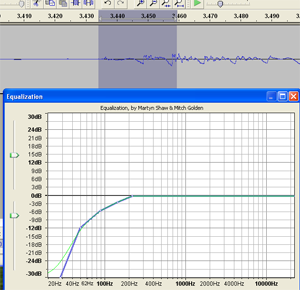
Zoom in and highlight ONLY the “p” (or other plosive sound like “b,” etc.). Be careful not to select any of the vowel sound that comes after the “p” sound.
- Apply EQ Effect
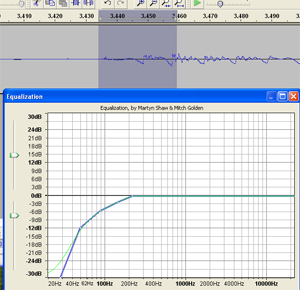
Apply an equalizer effect (EQ) to the “p.” Reduce the low frequencies in a slope going down and to the left, starting with about 200 Hz.
 Why sound editing software can be your friend. One common problem with recording the human voice is sssssomething called ssssssibilance. If you didn’t already know what “sibilance” meant, my odd spelling above may have clued you in. It’s a sharp, biting hissing sound that happens whenever the recorded voice utters the “S” sound. You’ll be listening to the recording, and everything will sound great, until the speaker/singer utters the phrase “she’s a sensation,” and pierces your eardrums.
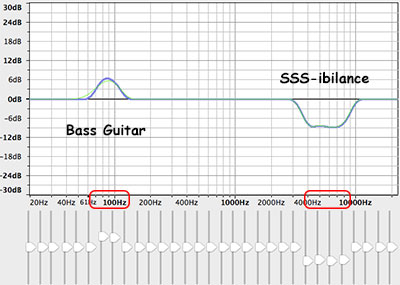 If we know, for example, that the “bass-y, boom- y parts of a bass guitar will most often be found around 80-100 Hz. So we can then we use an EQ to turn down (or up….but usually down….never mind) the bass by ONLY turning the volume down around 80-100 Hz. Likewise, high sounds like the sizzle of a high-hat, can be found hanging out around 6,000 Hz (or 6KHz for short). So if you knew that vocal sibilance mostly hung out between 4 KHz and 10 KHz, you would know where to start looking for your particular brand of hissiness so you could fix it.
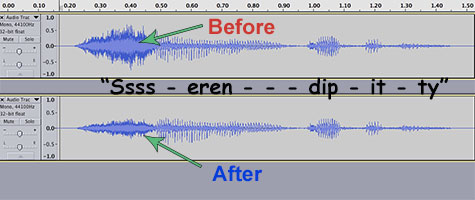 It’s so cool that we can use our eyes to edit audio now. Isn’t it? Sigh, OK I’m a geek. Anyway, you can usually see sibilance on a computer screen pretty easily, using any sound editing software available. The squiggly blobs get all bunched up and dark for a bit. In the picture, you can see the word “serendipity’ recorded. The blue blob at the beginning.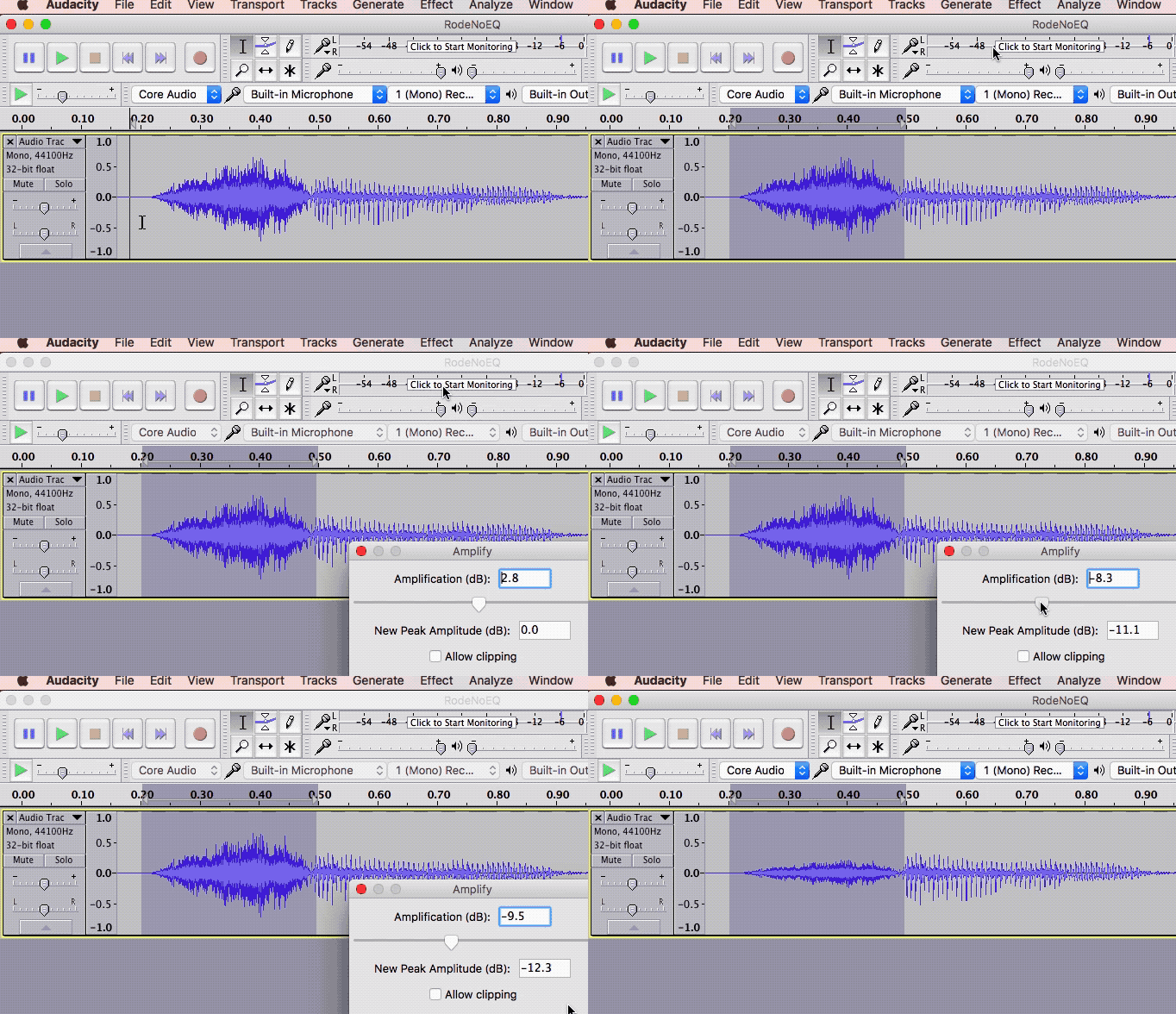
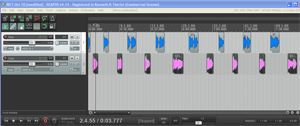 If you have ever been asked to record and edit a conversation between two people, say, for a voice over job, then you are probably aware of the logistical problems this can cause. The client usually has visions of just getting the two people together around a microphone and simply reading their parts at the appropriate time. Sure, that would be OK if you always had both people available at the same time, along with two great microphones, a large enough space for both people to occupy at the same time, etc. But these conditions are not always available to us.
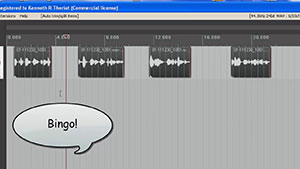 By the way, we’ll be using the excellent audio recording software called
 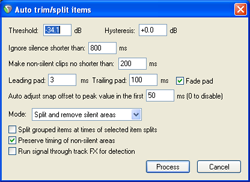 The next bit of time-saving automation was the Auto Trim/Split function. What this does is allow you to slice one continuous audio file into several separate audio items in a track based on when there is silence and when there is speaking going on. This was huge! I had been slicing (using the “S” keyboard shortcut) just before and just after each phrase, and then dragging the edges of the resulting clipped audio item in to get rid of the silence. That was 4 different operations (2 slices and 2 drags) for every phrase! Multiply that by dozens of phrases for each voice and you have a LOT of work. But with Auto Trim/Split, you select the entire long audio item in the track and hit one keyboard shortcut (you can set your own – mine is “ctrl+~”) and boom! Every phrase becomes its own item, perfectly trimmed on either side. See the picture at the top of the article where this has been done to each voice). That one discovery saved me about 20 minutes per voice!
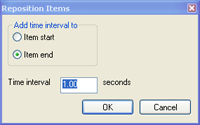 The other thing that was taking a long time was spacing each voice, alternating boy-girl-boy-girl, with exactly 3 seconds between each phrase. As I mentioned earlier I was doing this manually until I discovered the Reposition Items tool in Reaper. [Update: Reposition Selected Items (as it is now called) is not part of the native Reaper set of tools. You need the free extension set – SWS extensions – by just going here:
  There are two academy awards for audio recording and producing, which are Sounds Editing and Sound Mixing. The 2017 awards were awarded as follows:
 Using an audio editor, you can REALLY improve your voice over recordings. This article and video shows you how to get rid of saliva noises when recording voice overs. Of course it works for any kind for any kind of vocal recording where your mouth is close to the microphone.
 Sometimes no matter what you do, your saliva finds its way into your recording. When that happens, here is what you do (which is shown step-by-step in the video below):